Transtore allows you to add and manage the currencies that appear in your store’s currency switcher. This gives your international customers the ability to view prices in their preferred currency, helping create a localized and user-friendly shopping experience.
I. Add currencies to your store
Please follow these steps to add target currencies in Transtore:
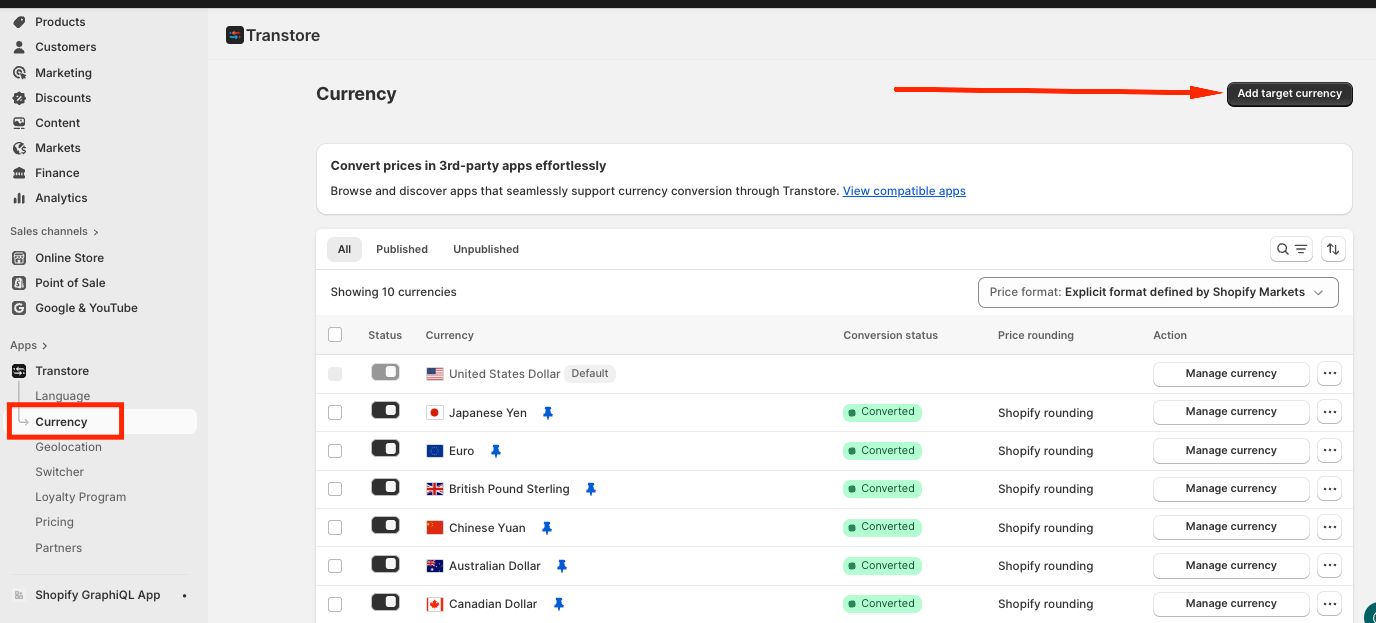
From your dashboard, please go to Currency → click on Add Target Currency:
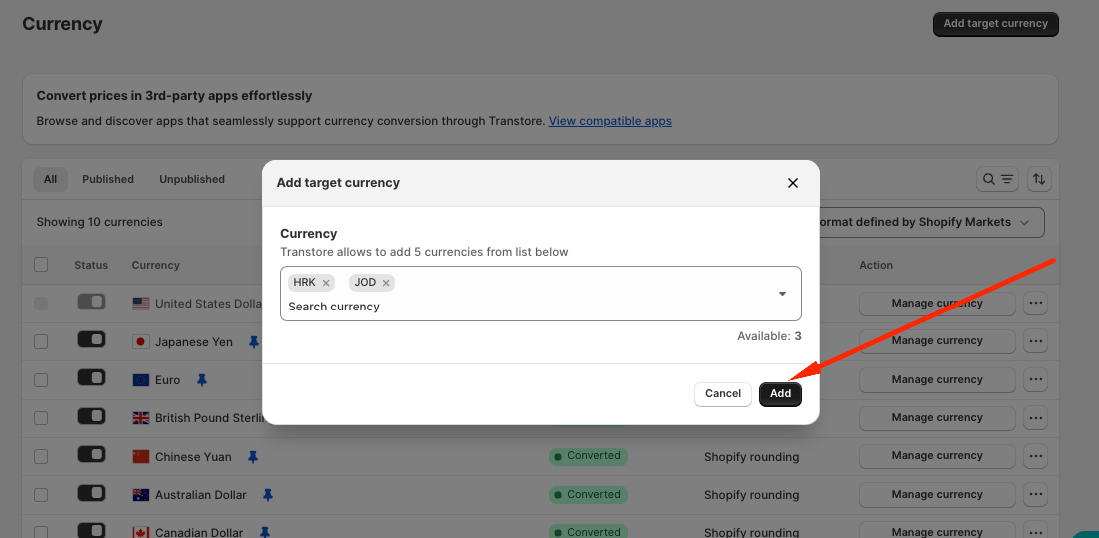
Browse the list of available options, select the currency and then Add here:
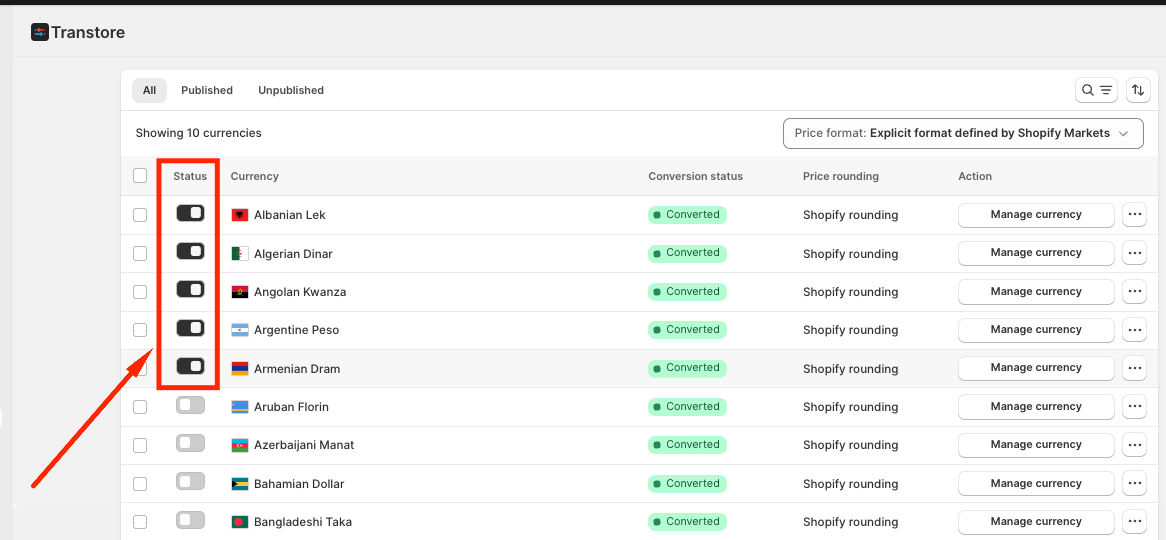
Once added, turn on the currency to make it visible:
II. Customizing currency appearance
Change the Currency Flag — Click the three dots next to the target currency and select a flag that best represents the country or region you want.
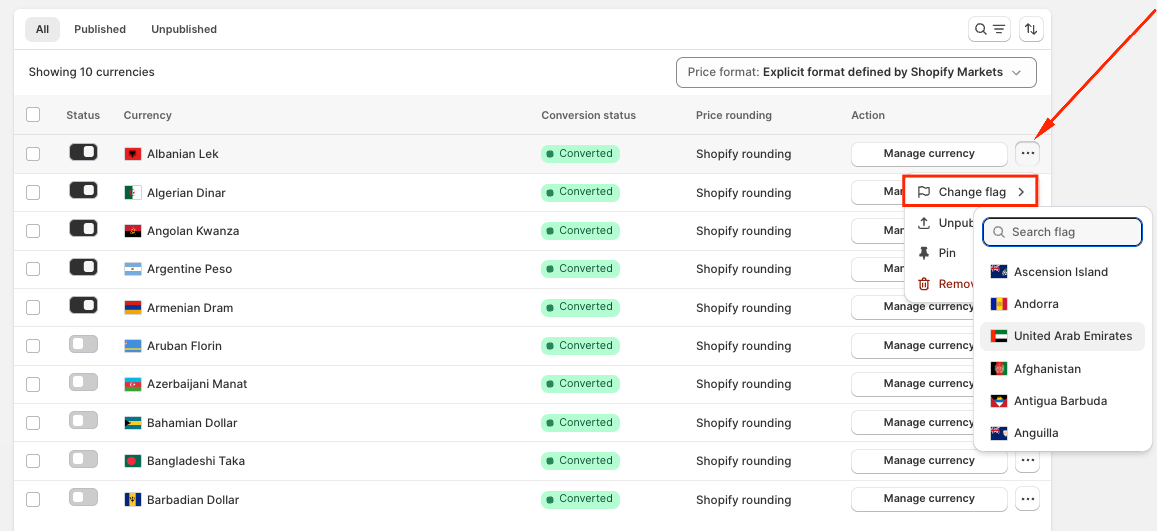
Pin Currency for Better Visibility — In the same menu, you can pin a currency to the top of your list, ensuring it’s prominent and easy to access. This is especially useful when you want to prioritize currencies used by a large portion of your international customer base.
Remove/Unpublish Currency When Needed
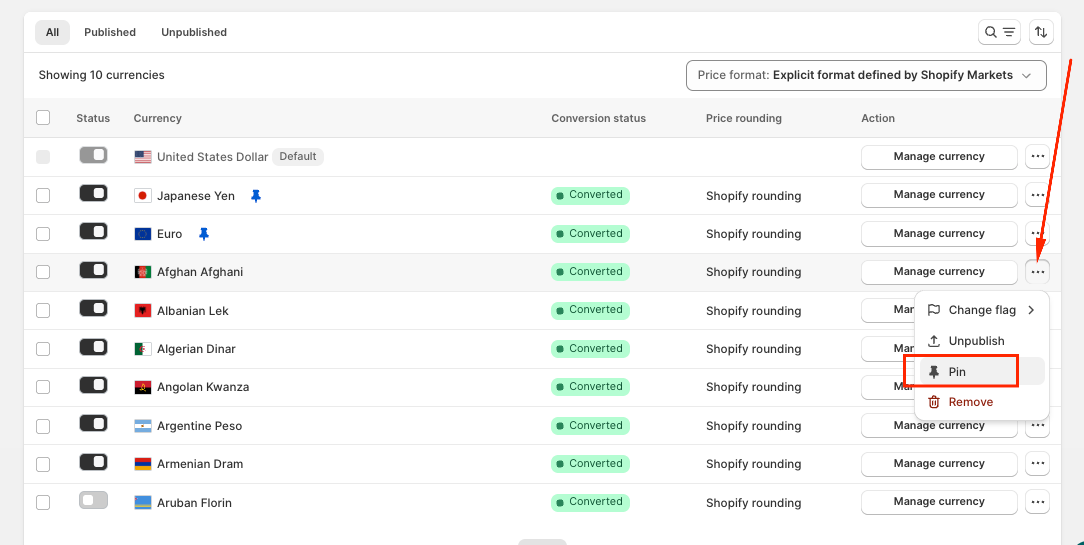
If you decide a currency is no longer necessary, you can Remove it here:

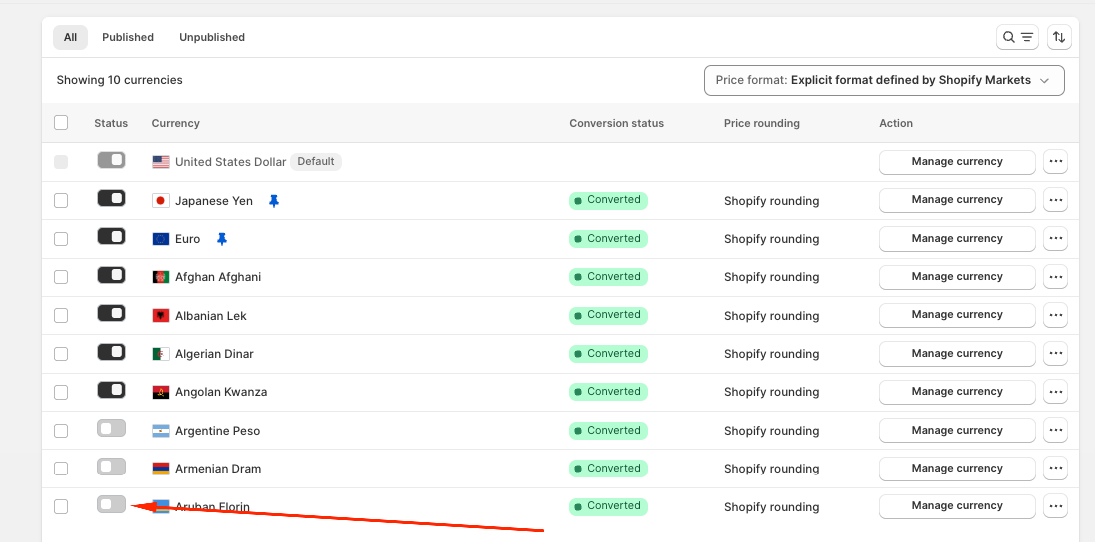
Or you can simply Unpublish the Currency when you want to hide it temporarily on the storefront:
NOTE:
Pricing at checkout requires Shopify Payments to support multi-currency purchases.
If you only want certain currencies to be available in specific regions or countries, configure them through Shopify Markets first, then manage them in Transtore.
You can always disable a currency instead of removing it permanently if you want to preserve your settings.
If you need further guidance or have any questions, don't hesitate to reach out to our support team via email at support@transtore.app or submit a ticket here. We'd be happy to help!
Was this article helpful?
That’s Great!
Thank you for your feedback
Sorry! We couldn't be helpful
Thank you for your feedback
Feedback sent
We appreciate your effort and will try to fix the article