If a currency doesn’t appear on your switcher, it usually means the currency hasn’t been set up, added, or published in the app. Please follow the steps below to check your setup.
I. Configure currency setting
You need to set up the currency code on Shopify so the currency from our app can work with your store.
Please go to the Currency section and follow the instructions here to paste the code in your Shopify currency format settings. Once it’s done, please go back to the back and click on “Check your settings”:
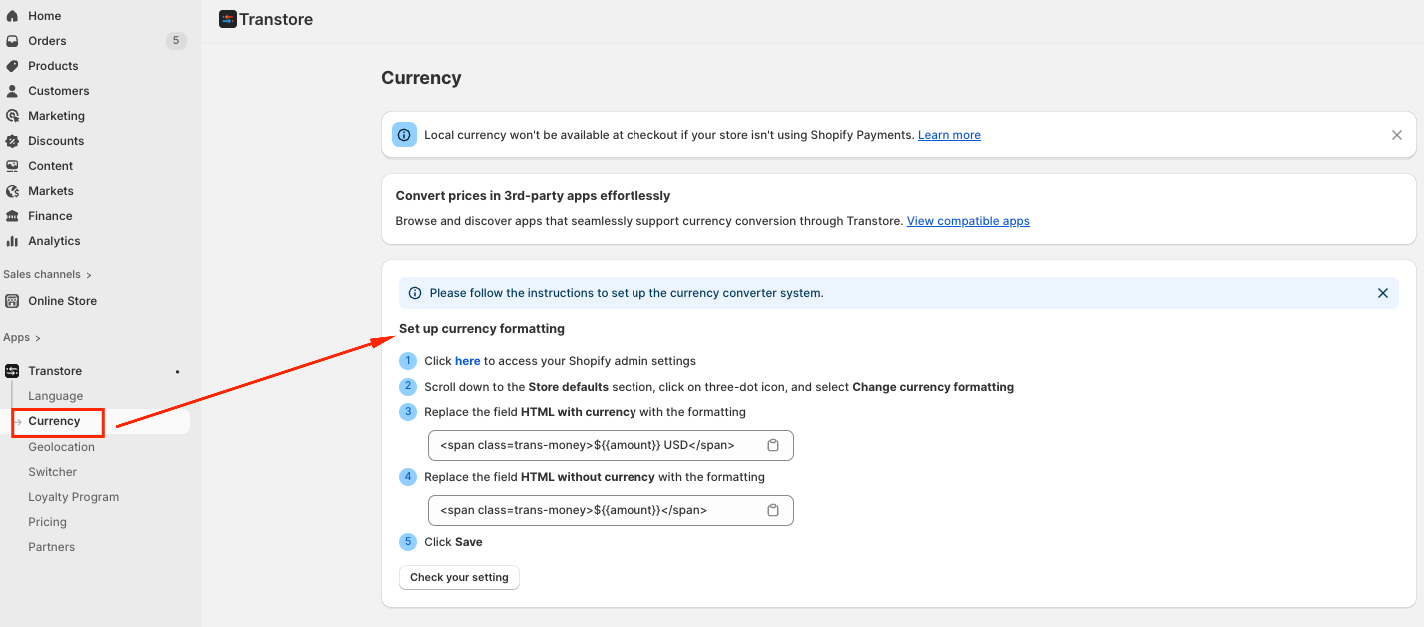
You can also view this recording for the detailed instructions: https://www.youtube.com/watch?v=acZ_rKDNsRA
II. Add and Publish the Currency in Transtore
First, please make sure the currency exists and is published in the app.
Go to the Currency section in Transtore
Click Add target currencies and select the currency you want to use
Toggle the currency to Publish
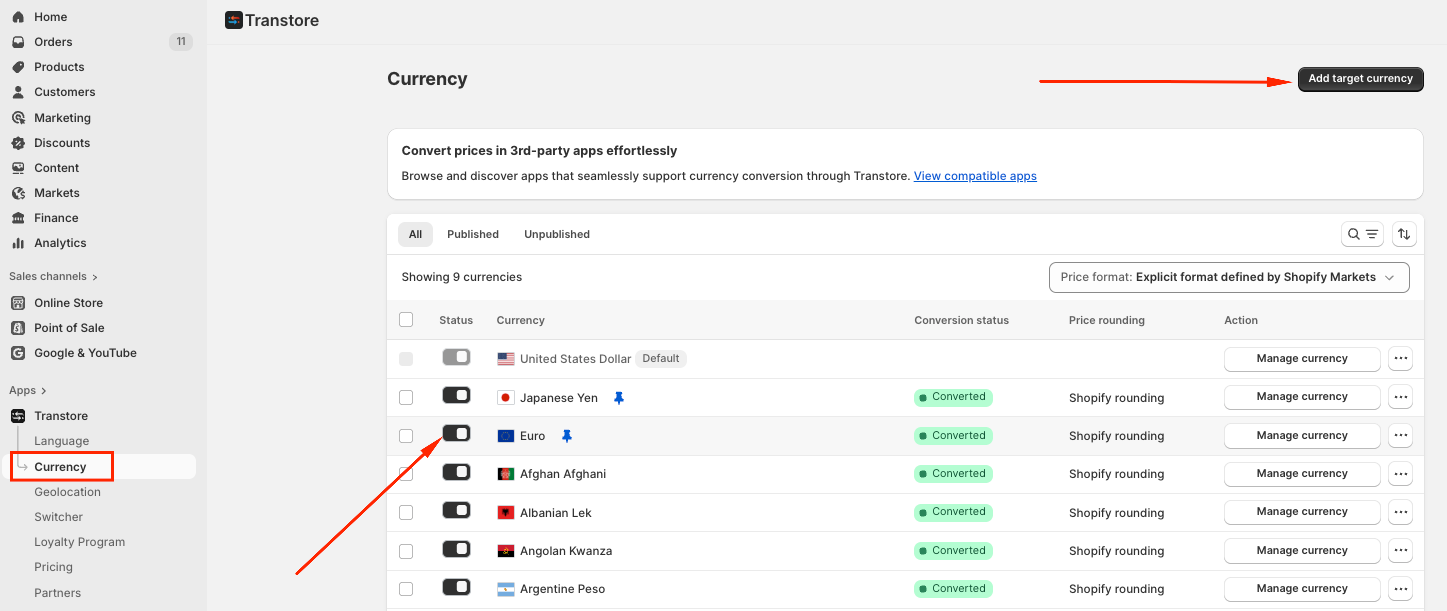
Note: Only published currencies will appear on the switcher.
II. Make sure the currency selection is enabled in the Switcher
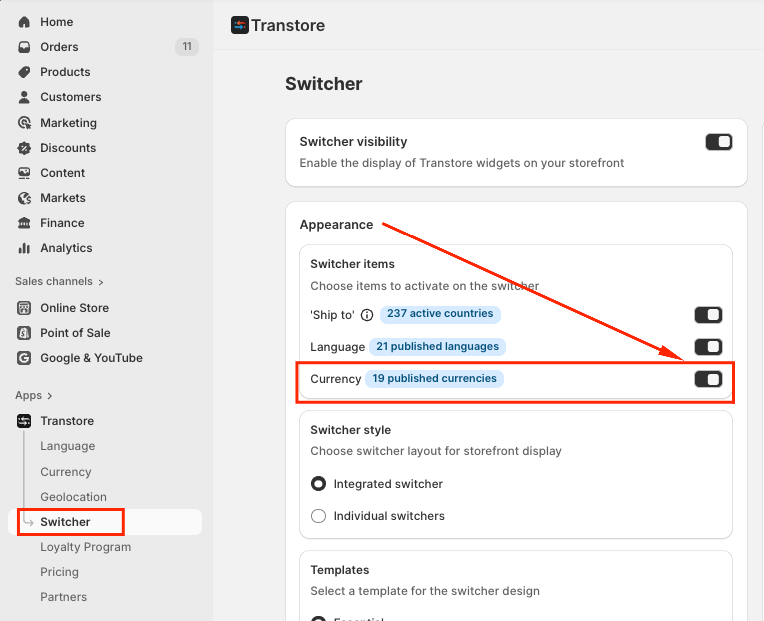
Next, confirm that the currency selection is activated in the switcher
Go to the Switcher section in Transtore
2. In Appearance -> Toggle currency ON and Save.
III. Final Check
Make sure the Transtore app is enabled in your theme editor.
Refresh your store or clear your browser cache to re-check
Once these steps are completed, the currency should appear on your switcher.
If you need further guidance or have any questions, don't hesitate to reach out to our support team via email at support@transtore.app or submit a ticket here. We'd be happy to help!
Was this article helpful?
That’s Great!
Thank you for your feedback
Sorry! We couldn't be helpful
Thank you for your feedback
Feedback sent
We appreciate your effort and will try to fix the article