After configuring your language and currency options in Shopify Markets, the next step is adding the Transtore Switcher to your store. The Switcher gives customers quick control over how they view your store — ensuring they can browse in the language and currency that feels most comfortable to them.
I. Switcher visibility
First, please ensure that the Transtore app is enabled in your Shopify Theme Editor. Please follow this instruction here for more information.
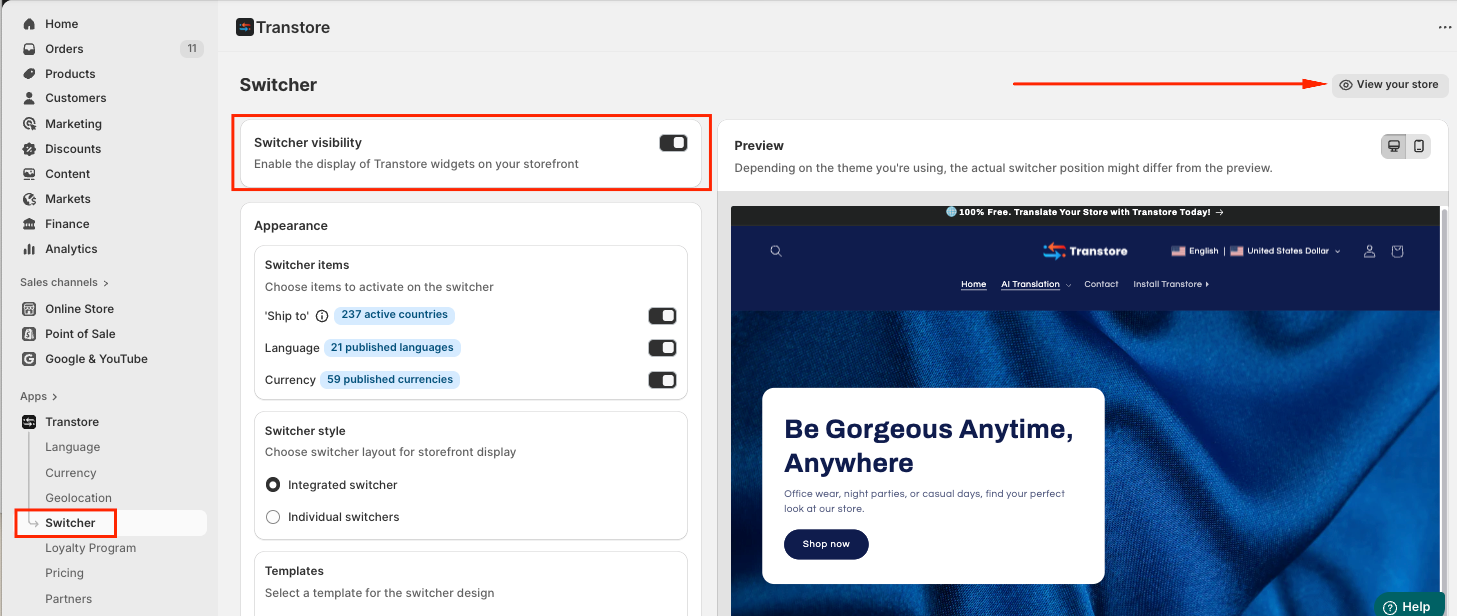
In the Switcher section, you can enable or disable the Switcher to control its visibility on your storefront. Once updated, simply select “View your store” to preview how the Switcher appears on the desktop or mobile:
II. Appearance
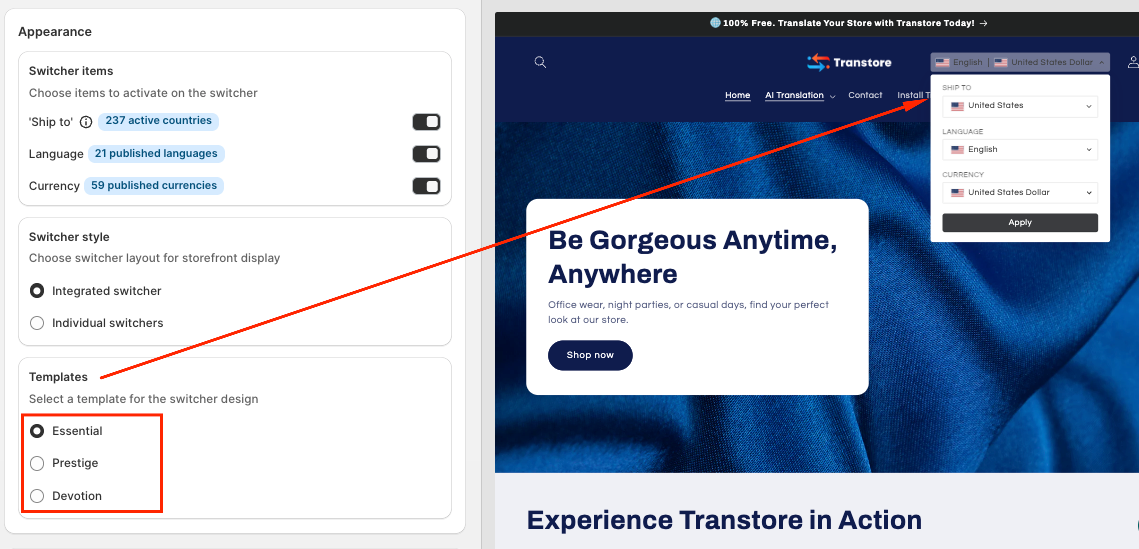
Switcher item: You can decide which item - Ship to, Language or Currency to show inside the switcher.
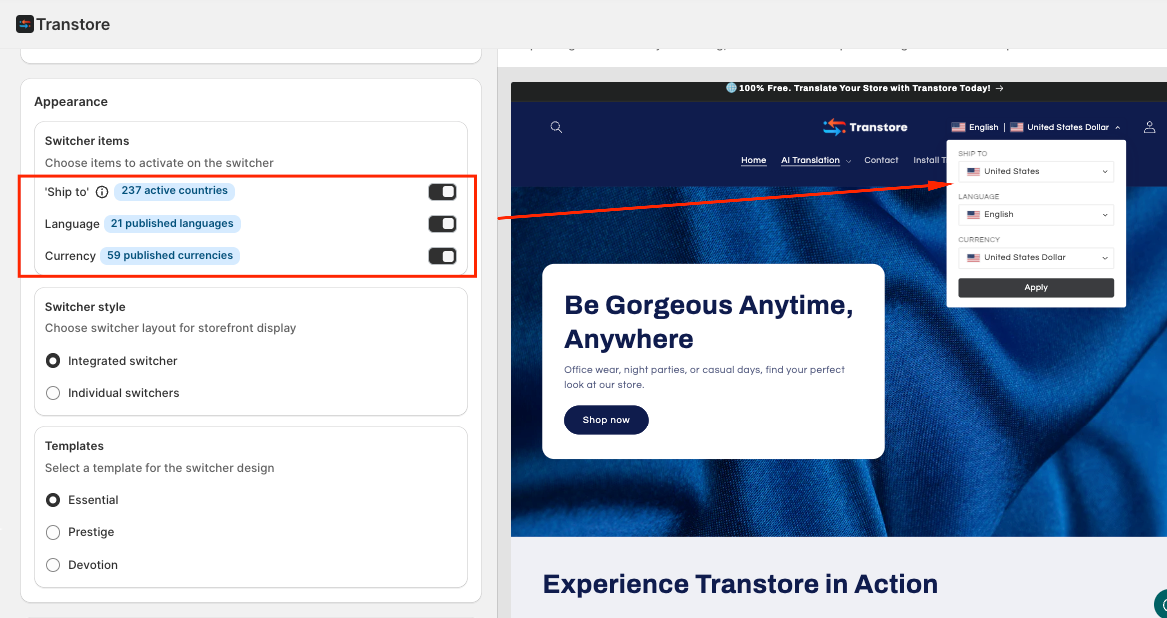
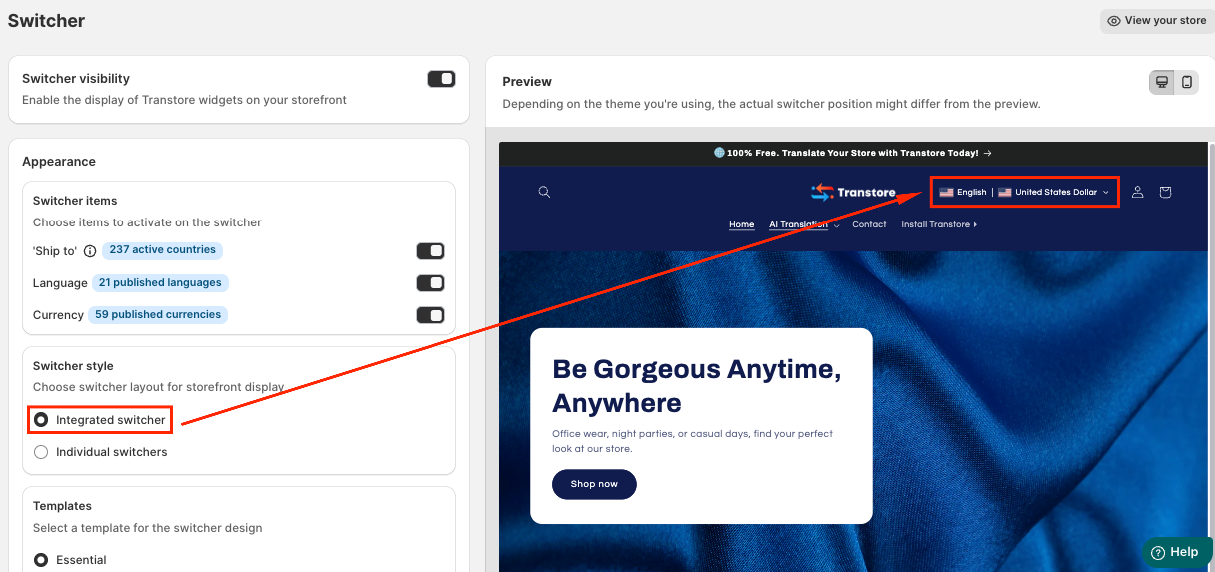
Switcher style: you can choose the layout for Switcher:
(1) Integrated switcher: Ship to, Language, and Currency selection all display inside a switcher
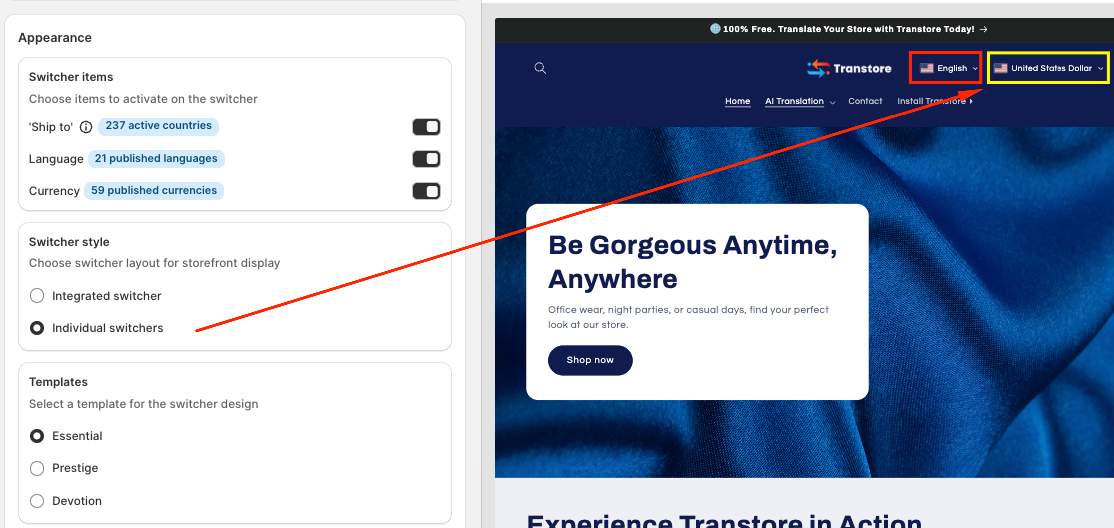
(2) Individual switchers: separate Language and Currency into 2 switchers.
3. Template: Please choose a template that is suitable for your theme:
III. Customization
You can customize how the Switcher looks on your storefront — including its position, items, and color — to match your store’s design seamlessly.
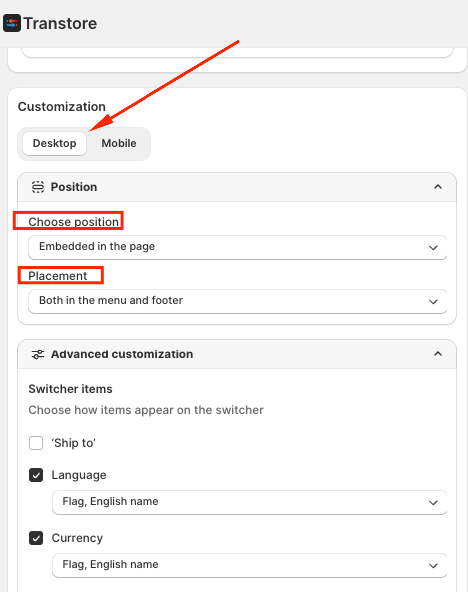
Position: Please choose the Position and Placement that you refer to display the switcher on the Desktop and Mobile.
Floating on page corner – The switcher stays fixed in the corner of the screen, remaining visible even when customers scroll through the page.
Embedded on the page – The switcher stays at a fixed location (commonly in the header). It does not follow the customer while scrolling down.
Advanced customization: Open this tab to adjust the Switcher’s detailed settings — including Colors, Items, and Disclosure display.
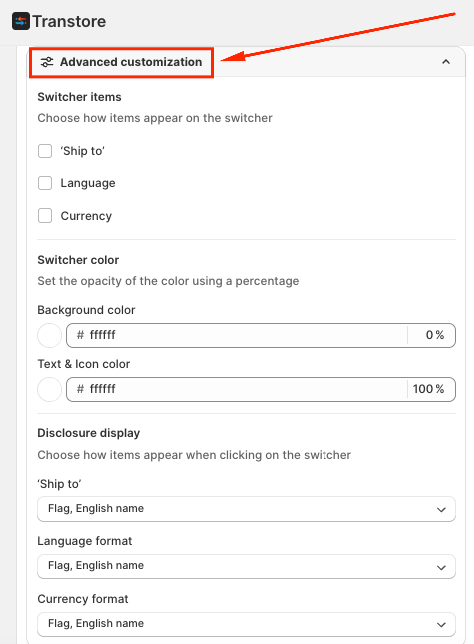
You can also show a combination of flags, language styles, and currency formats based on your preference.
Ship to / Language display options:
English name
Short name
Native name
Flag
Currency display options:
Flag
English name
Code
Symbol
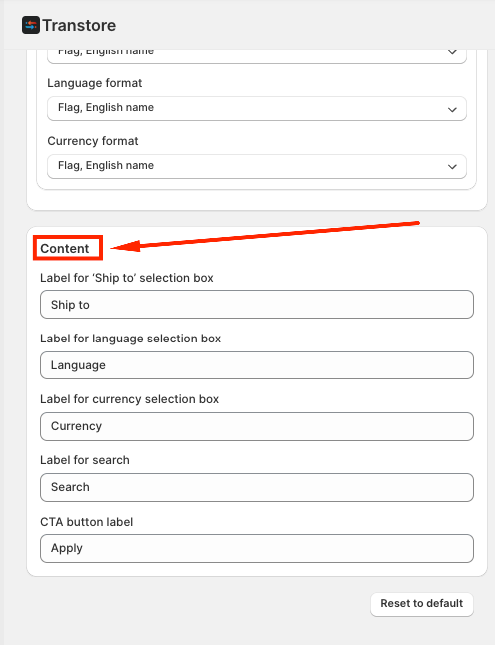
Contents: Label for the contents inside the Switcher:
NOTE:
If you enable the Switcher on a draft theme, you won’t be able to adjust its settings in the Switcher tab. However, the Switcher will still display correctly on your draft theme.
If your store is password-protected, you can enter the password in our preview window to see real-time changes directly inside the app.
Labels such as Language, Currency, Search, and Apply are shown in English by default. Once a visitor selects a target language in the Switcher, these labels will be translated automatically. You can also edit these translations manually in the app at any time. Please click here to learn more.
If you need further assistance, please feel free to contact us at support@transtore.app or submit a ticket here.
Was this article helpful?
That’s Great!
Thank you for your feedback
Sorry! We couldn't be helpful
Thank you for your feedback
Feedback sent
We appreciate your effort and will try to fix the article