With Transtore’s new Glossary feature, you can define how specific terms should be translated—or untranslated on the storefront. Perfect for brand names, product terms, and industry-specific words that must stay consistent across all languages.
I. Understanding the Glossary Feature in Transtore
The Glossary feature helps you define and manage key terms, brand vocabulary, and specialized phrases so that they are translated consistently and correctly across all languages in your store.
This is especially useful if your store uses:
Brand-specific terms (e.g., product lines, collection names)
Technical terminology
Marketing taglines or slogans
Industry-specific words that automatic translation might misinterpret
Example:
“EcoBlend™” should always stay EcoBlend™
“All-Natural Fabric” should always be translated as Tissu Naturel Complet (French) or your preferred version
II. How to Create Translation Rules
1. Go to Glossary
To navigate Language in Transtore, select “Glossary” here:
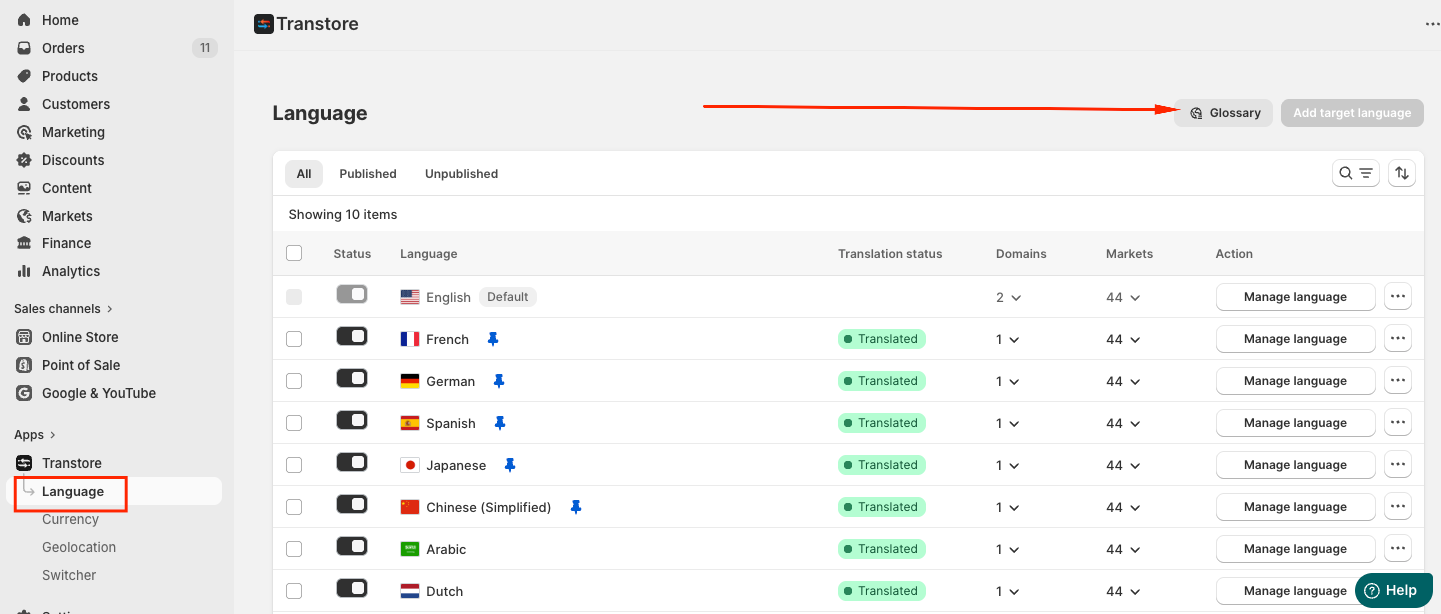
2. Add Your Rule
Click Add rule to open the rule setup window. Transtore supports 2 rule types: Translate as or Never translate.
(1) Translate as:
Use this option when you want a term to always be translated in a specific way.
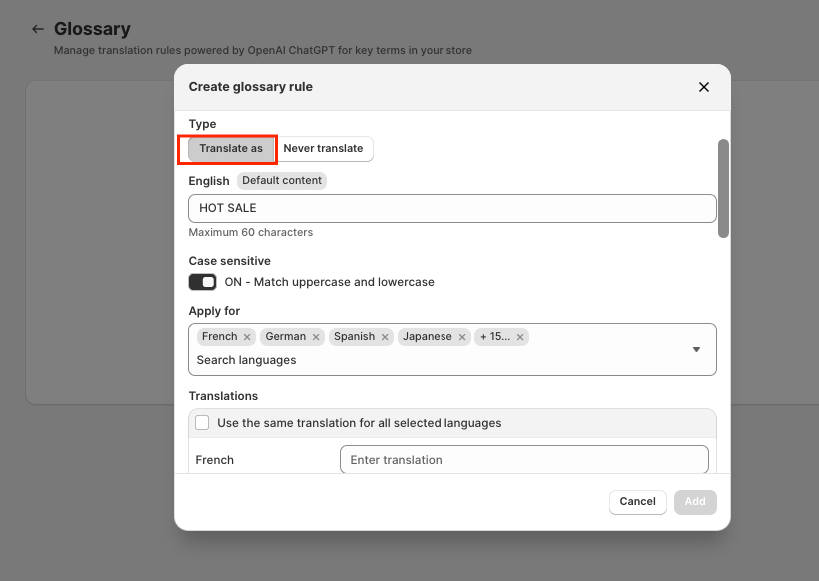
Term: Enter the word or phrase you want to create a rule for (e.g. brand name)
Case sensitive
OFF: Ignore uppercase/lowercase differences.
ON: Match the exact letter casing.
Apply for: Select the target language(s) where this rule should apply.
Translation:
One translation field will appear for each selected target language.
Enable “Use the same translation for all selected languages” if you want to apply one translation across all of them.
Once done, click Save, then double-check the result on your storefront.
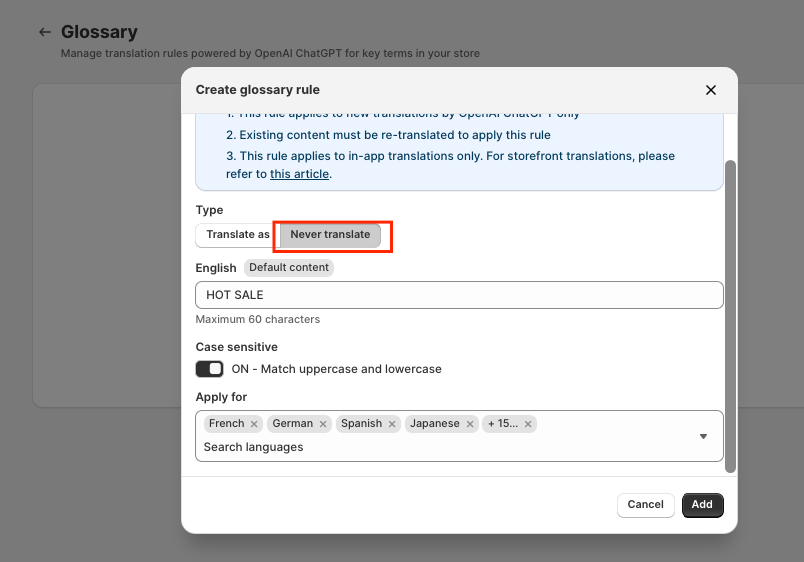
(2) Never Translate:
Use this option when you want a term to always stay in its original language and never be translated.
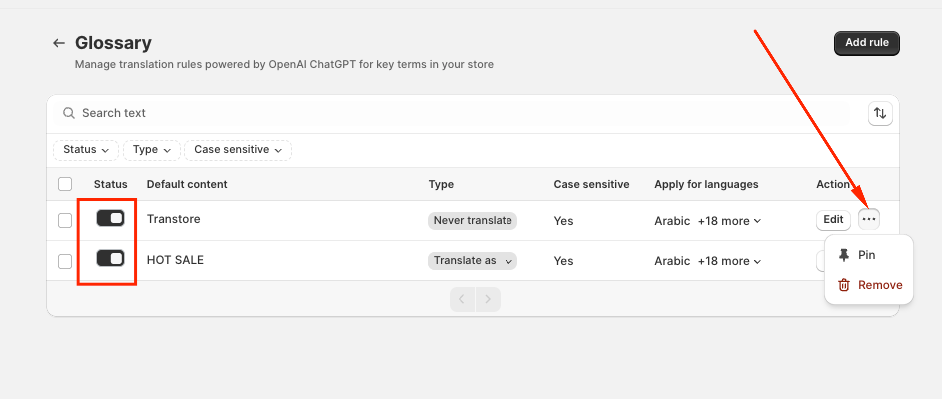
II. How to Manage Glossary Rules
Once adding the Rules successfully, you can Enable/Disable, Pin or Remove the Rules:
Notes:
Word limit: Each term can contain up to 60 characters.
- When a target language is deleted, all glossary rules related to that language are automatically removed.
- Glossary rules apply only to exact terms and do not affect words that contain the term as part of a longer word (for example, a rule for “Home” will not apply to “Homeless”).
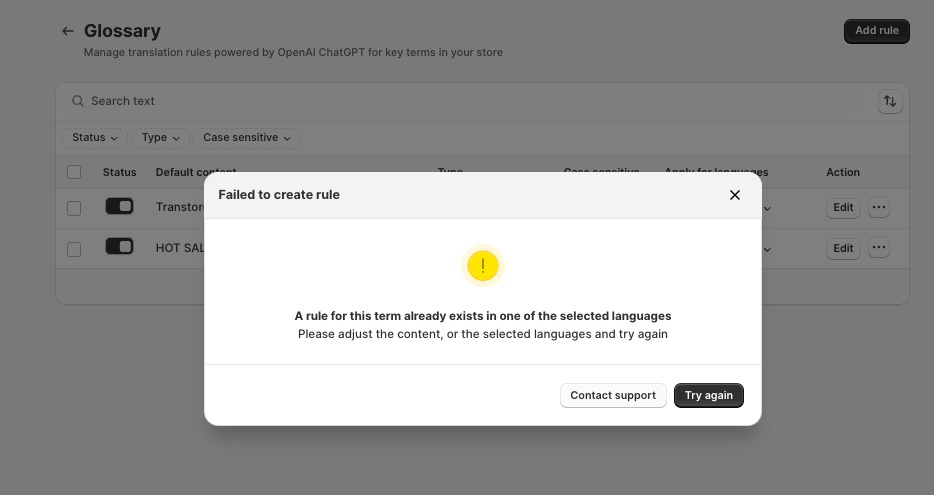
One rule per term: A term can only have one rule, and it cannot be set as both Translate as and Never translate.
If you need further guidance or have any questions, don't hesitate to reach out to our support team via email at support@transtore.app or submit a ticket here. We'd be happy to help.
Was this article helpful?
That’s Great!
Thank you for your feedback
Sorry! We couldn't be helpful
Thank you for your feedback
Feedback sent
We appreciate your effort and will try to fix the article