By default, when you choose to embed the Transtore switcher in the footer, it will automatically appear next to your theme’s built-in language or currency switcher. This behavior is consistent across all Shopify themes, including popular ones such as Publisher, Spotlight, Dawn, Ride, Taste, Studio, Craft, Origin, Be Yours, Sense, Aero, Trade, Generated Data Theme, Shrine PRO, Cello, and Rise.
While this default placement works well for most stores, some merchants prefer more control over positioning or alignment to better match their footer layout and branding. In this guide, you’ll learn two simple methods to customize the Transtore switcher’s placement in the footer.
Method 1: Move the Footer Switcher to a Different Position
(Works for all Shopify themes)
If you want to move the Transtore switcher to a completely different area of the footer (or even reorganize your footer layout), this method gives you full flexibility.
Step 1: Open the Theme Code Editor
Go to your Shopify Admin
Navigate to Online Store → Themes
Click … (More actions) → Edit code
Step 2: Open the Footer File
In the file list, open:
Sections → footer.liquid
This file controls the structure and layout of your footer.
Step 3: Insert the Manual Switcher Containers
Find the exact spot in the footer where you want the Transtore switcher to appear. Then paste the following code at that location:
<div id="ts-switcher-footer-manual-desktop"></div>
<div id="ts-switcher-footer-manual-mobile"></div>
Once added, the Transtore switcher will render in this new position instead of its default location.

Tip:
For better alignment, spacing, or responsiveness, you can apply custom CSS to these containers. This is especially useful if your footer has multiple columns or a unique layout.
Method 2: Adjust the Switcher for Better Balance
(Recommended for the themes listed above)
If you’re generally happy with the switcher being in the footer but want it to feel more balanced or visually aligned with other footer elements, this method is a lighter adjustment.
Step 1: Open the Theme Code Editor
As before, go to:
Shopify Admin → Online Store → Themes → Edit code
Step 2: Open footer.liquid
Navigate to:
Sections → footer.liquid
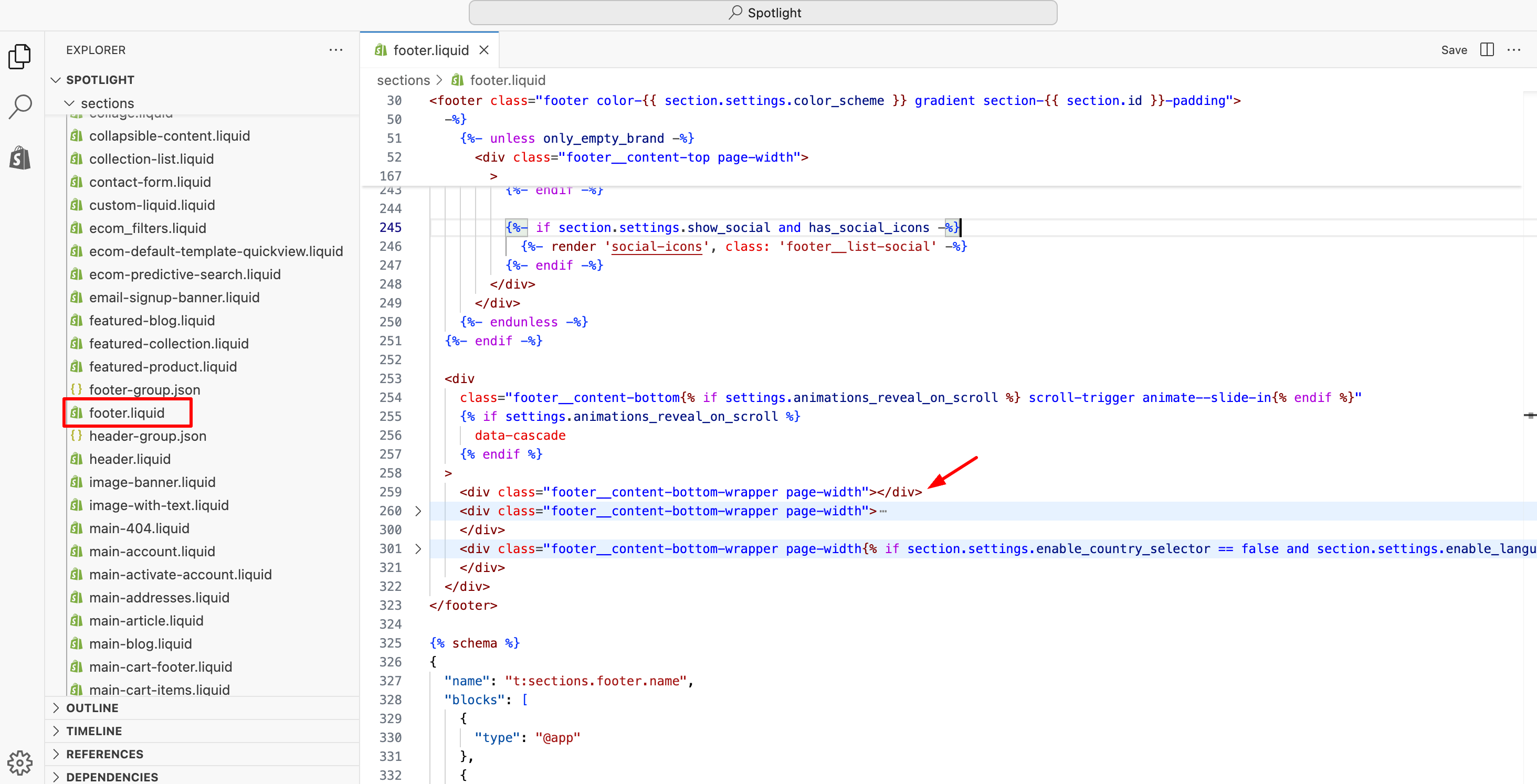
Step 3: Locate the Footer Bottom Wrapper
Use Cmd + F (Mac) or Ctrl + F (Windows) and search for the following line:
<div class="footer__content-bottom-wrapper page-width">
This wrapper controls the bottom section of the footer where elements like copyright text, payment icons, and switchers are usually placed.
Step 4: Add an Extra Wrapper Above It
Directly above the original line, add this code:
<div class="footer__content-bottom-wrapper page-width"></div>
After the change, your footer will contain two footer bottom wrappers—one reserved for better spacing and layout balance, and the other continuing to hold the default footer content.
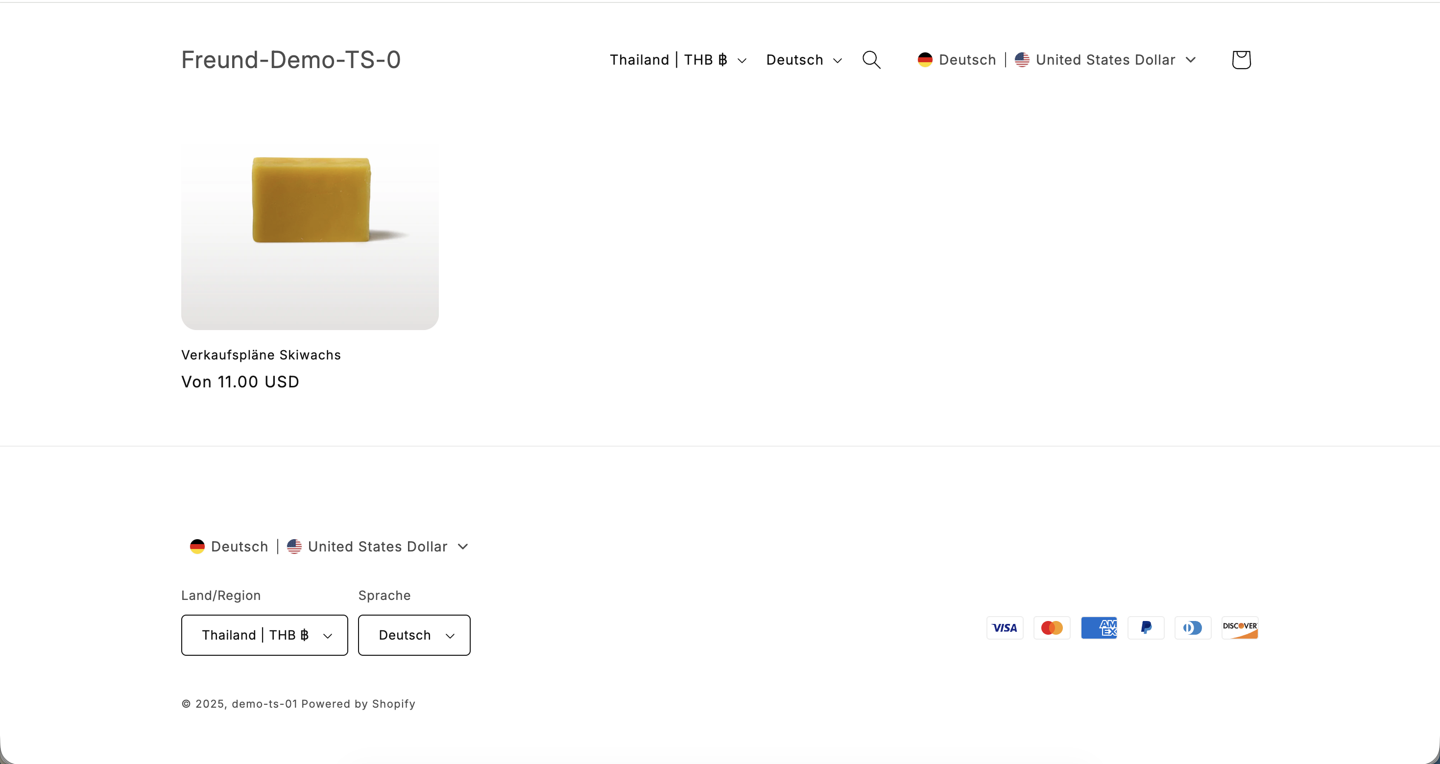
This small structural adjustment helps the Transtore switcher align more naturally with other footer elements, especially on themes that use tight or symmetrical footer layouts.
Should you encounter any difficulties during the setup process, please don't hesitate to reach out to us at support@transtore.app.
Was this article helpful?
That’s Great!
Thank you for your feedback
Sorry! We couldn't be helpful
Thank you for your feedback
Feedback sent
We appreciate your effort and will try to fix the article
